DVWA in Docker: Fast Setup for Hands-On Web Security LabsSetup Guide

DVWA in Docker provides a fast, disposable environment for practicing web-application security techniques. This guide walks you through a concise, step-by-step setup on Linux (Ubuntu/Debian recommended), using Docker to run Damn Vulnerable Web Application (DVWA) locally for hands‑on labs. You'll install Docker, pull the official DVWA image, and launch a container with verification commands, there is no need of prior Docker experience required beyond basic terminal knowledge and sudo privileges. Follow the steps below to get a working DVWA lab up and running in minutes.
Prerequisites
Linux system (Ubuntu/Debian recommended)
Internet connection
Basic terminal knowledge
Sudo privileges
Step 1: Install Docker
Open your terminal and run:

Used command sudo apt install docker.io to install the Docker containerization software from the default Ubuntu/Debian repositories.
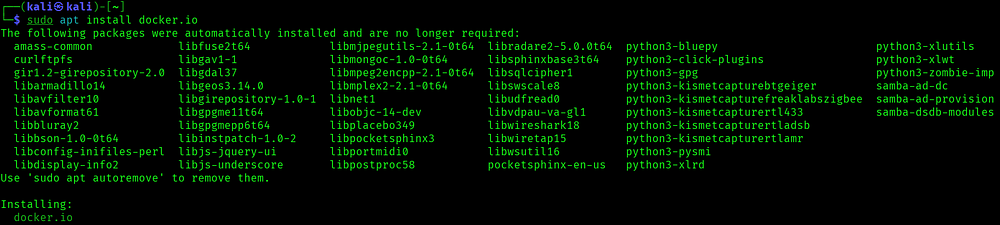
Verify Docker installation:

You should see the Docker version number now ready to go.
Step 1: Start Docker Service
Enable and start Docker:

Check if Docker is running:

Step 3: Download DVWA Docker Image
Pull the DVWA image from Docker Hub:
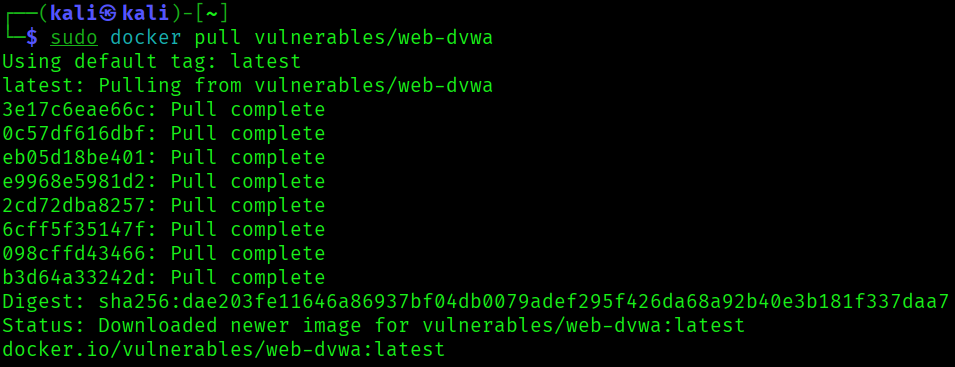
This will download the DVWA image. Wait for it to complete.
Verify the image was downloaded:

Step 4: Run DVWA Container
Start the DVWA container:

What this command does:
--rm= Remove container when it stops-it= Interactive terminal mode-p 80:80= Map port 80 on your system to port 80 in containervulnerables/web-dvwa= The image to run
Important: Keep this terminal open while using DVWA. Don’t close it.
Step 5: Access DVWA in Browser
Open a new terminal (keep the first one running) and navigate to:
http://localhost
You should see the DVWA login page or setup page.
You should see the DVWA login page or setup page.
Step 6: Initialize the Database
On the DVWA page, scroll to the bottom and click:
“Create / Reset Database”
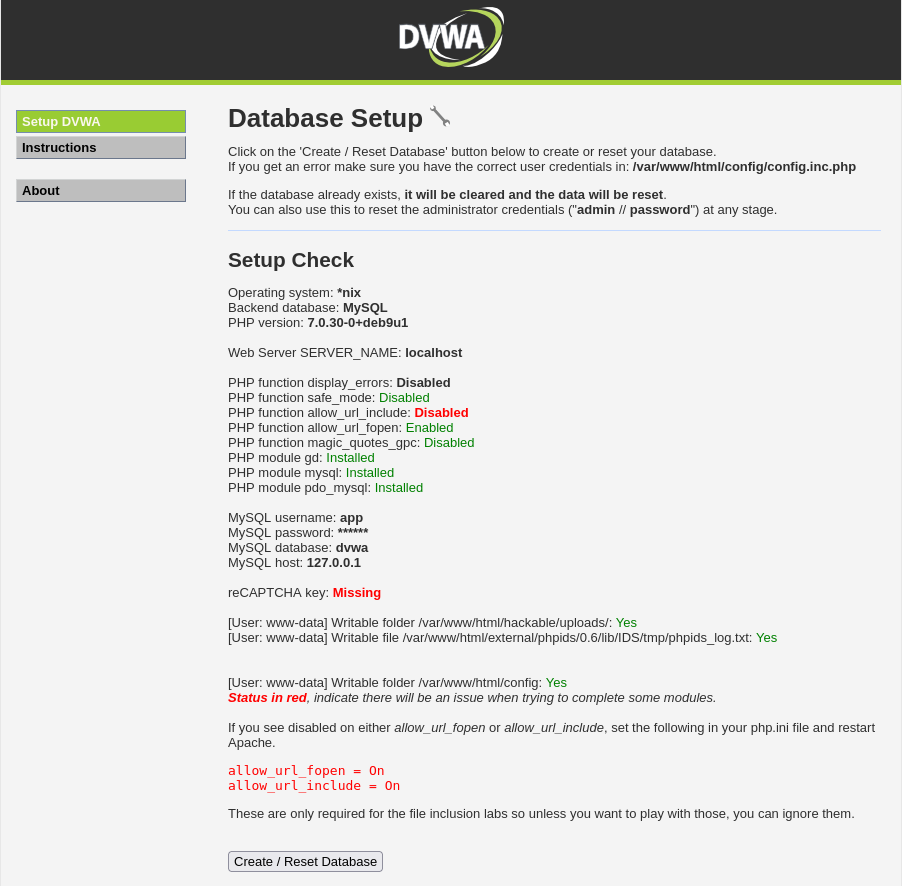
Wait for the database to be created. You’ll see a success message.
Step 7: Login to DVWA
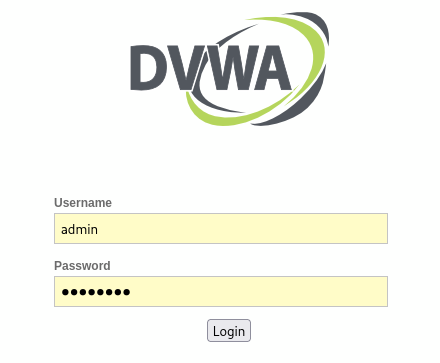
After database creation, you’ll see the login page.
Credentials:
Username:
adminPassword:
password
Click Login.
Step 8: Configure Security Level (Optional)
Once logged in:
- Click “DVWA Security” in the left menu
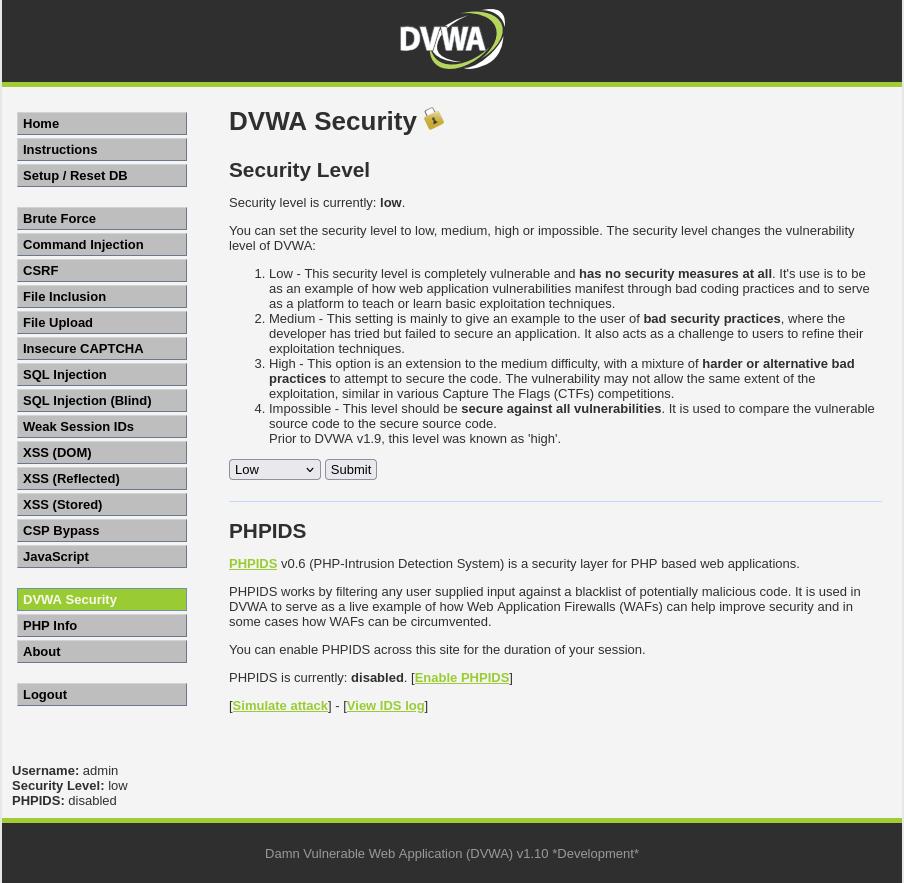
- Set the difficulty level:
Low = Easiest (best for beginners)
Medium = Intermediate
High = Advanced
Impossible = Nearly impossible to exploit
Start with Low to understand vulnerabilities first.
Step 9: Start Practicing
Navigate to different vulnerability categories:
Brute Force — Weak authentication
Command Injection — OS command execution
CSRF — Cross-Site Request Forgery
File Inclusion — LFI/RFI vulnerabilities
File Upload — Malicious file uploads
Insecure CAPTCHA — Broken authentication
SQL Injection — Database attacks
Weak Session IDs — Session management issues
XSS (Cross-Site Scripting) — JavaScript injection
Click on each to learn and practice exploits.
If you found this helpful, give it a clap 👏 and follow for more cybersecurity content!
![Day-01: TryHackme [rrootme] room Walkthrough](/_next/image?url=https%3A%2F%2Fcdn.hashnode.com%2Fuploads%2Fcovers%2F6914271866fe9f4d18f8b8c2%2F13f0e755-d48e-4e80-8845-ede491728c92.jpg&w=3840&q=75)


